Hikvision SADP Troubleshooting Guide
Welcome to the SecureView Solutions' comprehensive troubleshooting guide for Hikvision's SADP (Search Active Devices Protocol) tool. SADP is essential for initial device activation and network configuration. This page aims to address common problems users encounter, providing step-by-step solutions to ensure smooth device management.
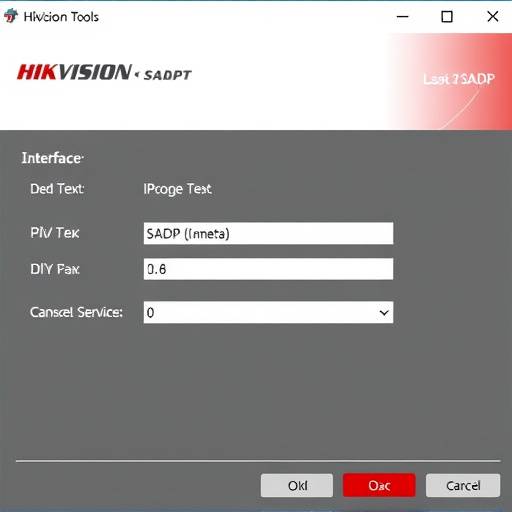
A screenshot displaying the SADP tool, highlighting potential areas of concern like device IP address conflicts or activation status.
Common SADP Issues and Solutions
1. SADP Cannot Find Devices
Problem: The SADP tool doesn't detect any Hikvision devices on the network.
Possible Solutions:
- Network Connectivity: Ensure your computer and the Hikvision devices are on the same network segment. Verify that both are connected to the same router or switch.
- Firewall Issues: Windows Firewall or other security software may be blocking SADP's communication. Add SADP as an exception in your firewall settings.
- Subnet Mismatch: Confirm that the IP address range of your computer's network adapter is compatible with the default IP range of Hikvision devices (typically 192.168.1.x).
- Incorrect Network Adapter: If your computer has multiple network adapters (e.g., wired and wireless), SADP might be using the wrong one. Try disabling other adapters to force SADP to use the correct one.
- Defective Cable/Port: Rule out any hardware issues by testing the network cable and port with another device.
- Device Not Powered On: Ensure all Hikvision devices are properly powered on and have sufficient time to initialize.
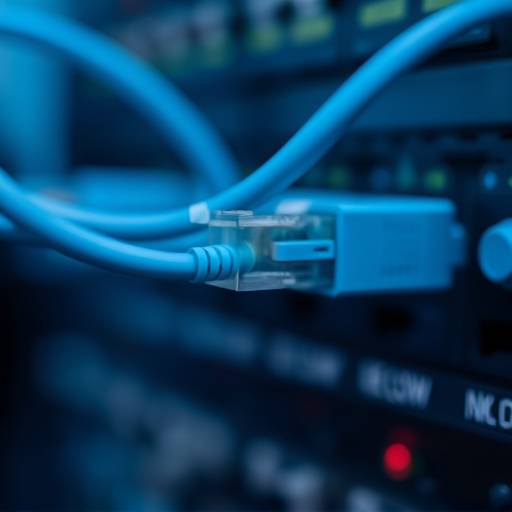
A close-up showcasing a properly connected network cable to a Hikvision device, emphasizing secure and reliable connection.
2. Device Activation Fails
Problem: You can detect the device with SADP, but activation fails.
Possible Solutions:
- Incorrect Password: Double-check that you are entering the correct activation password. Remember, it's case-sensitive.
- Password Complexity: The password must meet Hikvision's complexity requirements (typically 8-16 characters, including uppercase, lowercase, numbers, and special characters).
- IP Address Conflict: Another device on the network might be using the same IP address. Change the device's IP address in SADP to avoid conflicts.
- SADP Version: Ensure you are using the latest version of SADP. Older versions might have compatibility issues with newer device firmware.
- Firmware Issues: If the firmware on the device is corrupted, activation might fail. Try upgrading the firmware using a TFTP server, if possible.
3. IP Address Modification Issues
Problem: Unable to change the IP address of the device using SADP.
Possible Solutions:
- Admin Privileges: Run SADP as an administrator. Right-click on the SADP icon and select "Run as administrator."
- Password Protection: The device might be password-protected against IP address changes. Enter the correct password when prompted.
- Network Configuration: Verify that your computer's IP address is in the same subnet as the device's current IP address.
- DHCP Server: If your network has a DHCP server, the device might be automatically obtaining an IP address. Disable DHCP on the device or configure a static IP address reservation in the DHCP server.
Frequently Asked Questions (FAQ)
Contact Technical Support
If you've tried the troubleshooting steps above and are still experiencing issues, please don't hesitate to contact our technical support team. We're here to help!